
As an Amazon Associate, we earn from qualifying purchases. This post contains affiliate links – if you buy through them, we may earn a commission at no extra cost to you.
Finding the best gear for animator blender depends on your personal workspace and how you prefer to interact with your software. Some animators want a full keyboard with dedicated shortcuts, while others prefer a compact dial or a specialized console to keep their hands comfortable during long sessions. Your choice often comes down to whether you prioritize tactile feedback for navigation or a wide range of programmable keys for complex commands. If you’re a beginner, a reference guide might be your first move, whereas a professional might jump straight to a dedicated editing console.
1. Logickeyboard Blender Astra 2

Best for: Someone who wants a complete keyboard with all shortcuts ready to use.
This keyboard is designed to simplify your workflow by placing over 140 shortcuts directly on the keys. If you’re used to standard office keyboards, this layout helps you learn commands faster because the labels are right in front of you. The five levels of backlighting allow for visibility in darker environments.
The built-in USB 3.0 hub is a handy feature for connecting your mouse or other peripherals directly to your keyboard. It’s a plug-and-play device for Windows 10 and 11, meaning you don’t have to worry about complex software setup. This product isn’t for users who prefer a mechanical feel or those who need a wireless connection, as it’s a wired unit.
Good if:
- You want a dedicated keyboard with labeled shortcuts.
- You need built-in USB ports for your other gear.
- You prefer a simple, plug-and-play setup.
Skip it if:
- You require a wireless connection for your desk.
- You prefer a mechanical switch feel for your typing.
2. Xencelabs Quick Keys

Best for: Creators who want a highly customizable shortcut pad with a screen.
The standout feature here is the OLED display, which lets you see exactly what each button does without needing to memorize your custom layout. You can program up to 40 shortcuts across five different sets, and the device auto-switches based on your software. The rotary dial provides control for zooming and canvas rotation.
This unit connects via a private Bluetooth 5.0 dongle, which is designed to maintain a stable connection even when other wireless devices are nearby. It’s a standalone shortcut pad, so you can use it with your existing keyboard and mouse. It is not supported on iOS or Android, cannot run on tablets such as iPads, and does not support macro commands or script automation.
Good if:
- You want to see your shortcuts on a built-in screen.
- You need a wireless device that resists signal interference.
- You want a dial for quick navigation and zooming.
Skip it if:
- You rely on complex macro scripts for your workflow.
- You need support for mobile tablets like an iPad.
3. XPPen Pilot Pro

Best for: Someone who wants tactile feedback and a professional editing console.
This console is built for creators who want to keep their eyes on the screen rather than looking down at their fingers. The 3D sculpted layout provides a natural feel, and the Z-axis motor vibration gives you tactile feedback when you trigger a command. The joystick and tri-rotary dials provide control for timeline navigation and color grading.
The device supports a triple-mode connection, giving you the choice of Bluetooth 5.3, a 2.4G dongle, or a wired USB-C cable. It includes a rechargeable battery that lasts for 24 hours of continuous use. This console isn’t for you if you prefer a flat, minimalist workspace, as its contoured design is intended for full palm and wrist support during long sessions.
Good if:
- You want tactile feedback to help you work without looking.
- You need a versatile joystick for directional navigation.
- You prefer a wireless setup with a long-lasting battery.
Skip it if:
- You have very limited desk space for a larger console.
- You prefer a flat, low-profile device.
4. TourBox NEO

Best for: Animators who want a dedicated dial and button system to replace mouse-heavy tasks.
The TourBox NEO is designed to consolidate your most-used controls into a compact, ergonomic shape. With 14 dedicated controls including a D-Pad and a dial, it allows you to zoom, rotate, and adjust brush sizes without reaching for your keyboard. The different shapes of the buttons help distinguish the controls.
It uses the TourBox Console software to map your favorite shortcuts, making it easy to start with ready-made presets. This device is wired, which is a trade-off for those who want a completely wireless desk. It isn’t for users who want to rely solely on keyboard shortcuts, as the logic here is to provide a physical controller that acts as an extension of your creative software.
Good if:
- You want a compact device to handle frequent navigation tasks.
- You prefer a layout that lets your hands find buttons by feel.
- You want to use software-specific presets for your workflow.
Skip it if:
- You strictly require a wireless connection.
- You prefer to use a full-sized keyboard for all your commands.
5. ULANZI D100H Video Editing Keyboard with Dial Knob Wireless Bluetooth

Best for: Someone who needs a compact, wireless controller that also handles office tasks.
This controller features a premium aluminum knob that offers motor vibration feedback, which is helpful for making precise adjustments to your timeline or rendering parameters. It supports Bluetooth 5.1 and can switch between three devices, such as a PC, Mac, or iPad, which is useful if you have a multi-device setup. It’s a compact tool that fits easily into a busy desk layout.
The Ulanzi Studio software allows for customization of the seven buttons and the knob. It’s also versatile enough for daily tasks like volume control or copy-paste functions. This device supports Windows 7 and later, macOS 10.13 and later, and Linux systems, and it doesn’t support dual-mode connectivity; the USB port is strictly for charging.
Good if:
- You need to switch your controller between multiple computers.
- You want a compact design with a high-quality aluminum knob.
- You plan to use the device for both editing and general office tasks.
Skip it if:
- You use older operating systems.
- You prefer a wired connection for your creative tools.
6. Learning Blender Guide

Best for: A beginner who wants a structured path to creating 3D characters.
This guide focuses on the fundamentals of character animation, which is often the most challenging part of learning the software. While it doesn’t provide physical shortcuts like a keyboard, it provides the knowledge needed to actually move your models.
7. Blender 2D Animation Guide
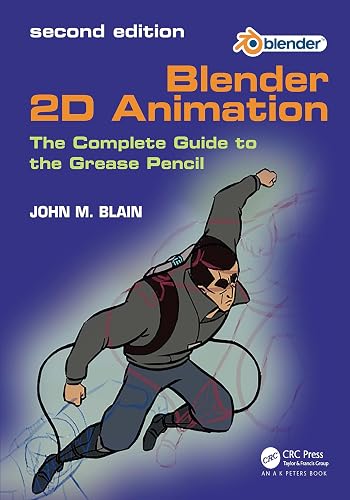
Best for: Artists looking to master the Grease Pencil tool.
If your goal is 2D animation within a 3D environment, this guide is a specialized resource. It covers the specific workflow of the Grease Pencil, which is a powerful part of the software.
8. Blender Rigging Made Simple

Best for: Animators who need to build and control armatures.
Rigging is the process of building the “skeleton” for your characters, and this guide breaks it down into manageable steps. It covers weight painting and inverse kinematics, which are essential for realistic movement.
9. Learn Blender Simulations

Best for: Creators who want to add physics and realistic effects to their work.
Simulations like cloth, fire, and water can be very complex, and this handbook helps you manage them in Blender 4.0. It’s a specialized manual that helps you move beyond basic modeling.
10. Blender Product Visualization
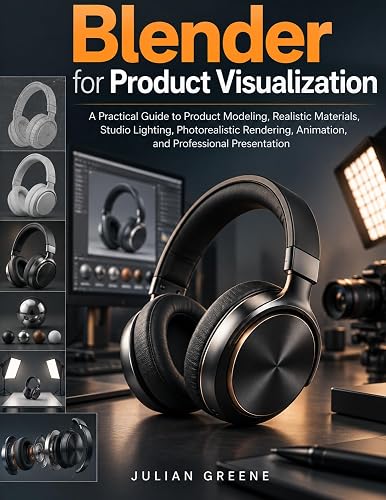
Best for: Designers who want to create photorealistic product renders and animations.
This manual covers everything from studio lighting to realistic materials, which is crucial for product design. It’s a comprehensive guide for anyone looking to use Blender for professional presentations.
Best Blender Gear for Animators
Most of these devices, such as the Xencelabs Quick Keys, XPPen Pilot Pro, TourBox NEO, and Ulanzi D100H, aim to solve the same problem: moving essential controls off the keyboard and onto a dedicated physical interface. They all offer some form of customization for keys and dials. The main difference lies in the form factor—some are consoles meant for two-handed use, while others are compact pads designed to sit next to your mouse. You can find more information on the official Blender website regarding how to configure external input devices for your specific pipeline. If you already have a comfortable mouse and keyboard, a specialized dial like the TourBox NEO might be enough, but if you need a complete overhaul of your shortcut system, the Logickeyboard Astra 2 provides a more integrated experience.
Still Not Sure?
How much do I actually need to change my workflow?
If you currently feel slow using only a mouse and keyboard, you probably need a dedicated controller. If you’re still learning the basics of 3D modeling, focus on a reference guide like Blender Rigging Made Simple first. Once you know the commands, a tool like the Xencelabs Quick Keys will make your work much faster.
Do I need a wireless or wired setup?
Wireless devices like the XPPen Pilot Pro offer a cleaner desk, but they require battery management. If you work in an area with high signal interference, a wired device like the TourBox NEO ensures your connection never drops. Consider how often you move your equipment around your workspace before you decide.
Will this work with my existing computer setup?
Check your operating system requirements carefully, as some devices like the Ulanzi D100H are restricted to newer versions of Windows and macOS. If you use a mix of different devices, look for a controller with multi-device switching capabilities. For specialized animation tasks, choose a resource like the Blender 2D Animation Guide to match your specific goals.
Choosing the right gear comes down to your primary goal: if you want a complete shortcut solution, look at the Logickeyboard Blender Astra 2. If you prefer a customizable controller for navigation and editing, the XPPen Pilot Pro is a strong choice. Start by identifying your biggest workflow bottleneck and pick the tool that addresses that specific step.
Related guides
- 10 Best Addons for Blender to Improve Your Workflow
- 10 Best Keyboards for Blender to Improve Your Workflow
- 10 Best Setup for Blender Options for Every Kitchen Need
Frequently Asked Questions
Can I use these shortcut controllers with other software besides Blender?
Yes, most of these devices, such as the Xencelabs Quick Keys and TourBox NEO, are designed to work across multiple creative applications. They allow you to create custom presets for different software, so you can switch between Blender, Photoshop, or Premiere Pro without reconfiguring your buttons every time you open a new program.
Do I need to install special software to make these work?
Most of these controllers require their own driver or console software to map the buttons correctly. The Logickeyboard Blender Astra 2 is the exception, as it’s a standard keyboard that works immediately upon plugging it in. For the other devices, you’ll need to install the manufacturer’s software to customize your shortcuts.
How do I decide between a dial and a joystick?
A dial is generally better for continuous adjustments like zooming, scrolling through a timeline, or changing brush sizes. A joystick, found on the XPPen Pilot Pro, is better for directional movement and multi-axis control. Choose a dial if your work involves a lot of frame-by-frame scrubbing, and a joystick if you need complex navigation.
Is it difficult to learn how to use these editing consoles?
There’s a slight learning curve as you build muscle memory for your new button layout. Devices with OLED screens, like the Xencelabs Quick Keys, make this easier by showing you what each button does. The listing doesn’t mention the learning curve or speed improvements.
Conclusion
Investing in the right tools shouldn’t feel like a chore, so start by upgrading just one piece of your setup that currently slows you down. You’ll find that even a small change makes a massive difference in your workflow. Don’t hesitate to experiment, as your perfect creative rhythm is waiting to be discovered.